Creating Your Lesson Plan
Transform your lesson goals into a clear, structured, and engaging plan in just a few minutes. With EdSyl’s AI-powered lesson planner, you can quickly outline your lesson and add interactive activities. You can also customize the format to match your teaching style.
Getting Ready to Create Your Lesson Plan
The first step in creating a lesson plan is creating a course, organizing your units, and adding lessons. Then, open a lesson to review the learning expectations and start working on your lesson plan, either manually or with the help of our AI assistant.
Currently, lesson plans can only be created within a course. If you would like the option to create standalone lesson plans, please let us know. We can enable this feature for your workspace.
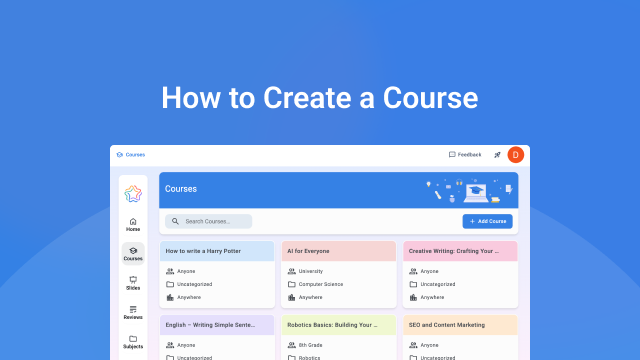
You can find more details about course creation and unit planning here: How to Create a Course, Working with Units.
Choose how you want to create a Lesson Plan:
Create a Lesson Plan with AI assistant
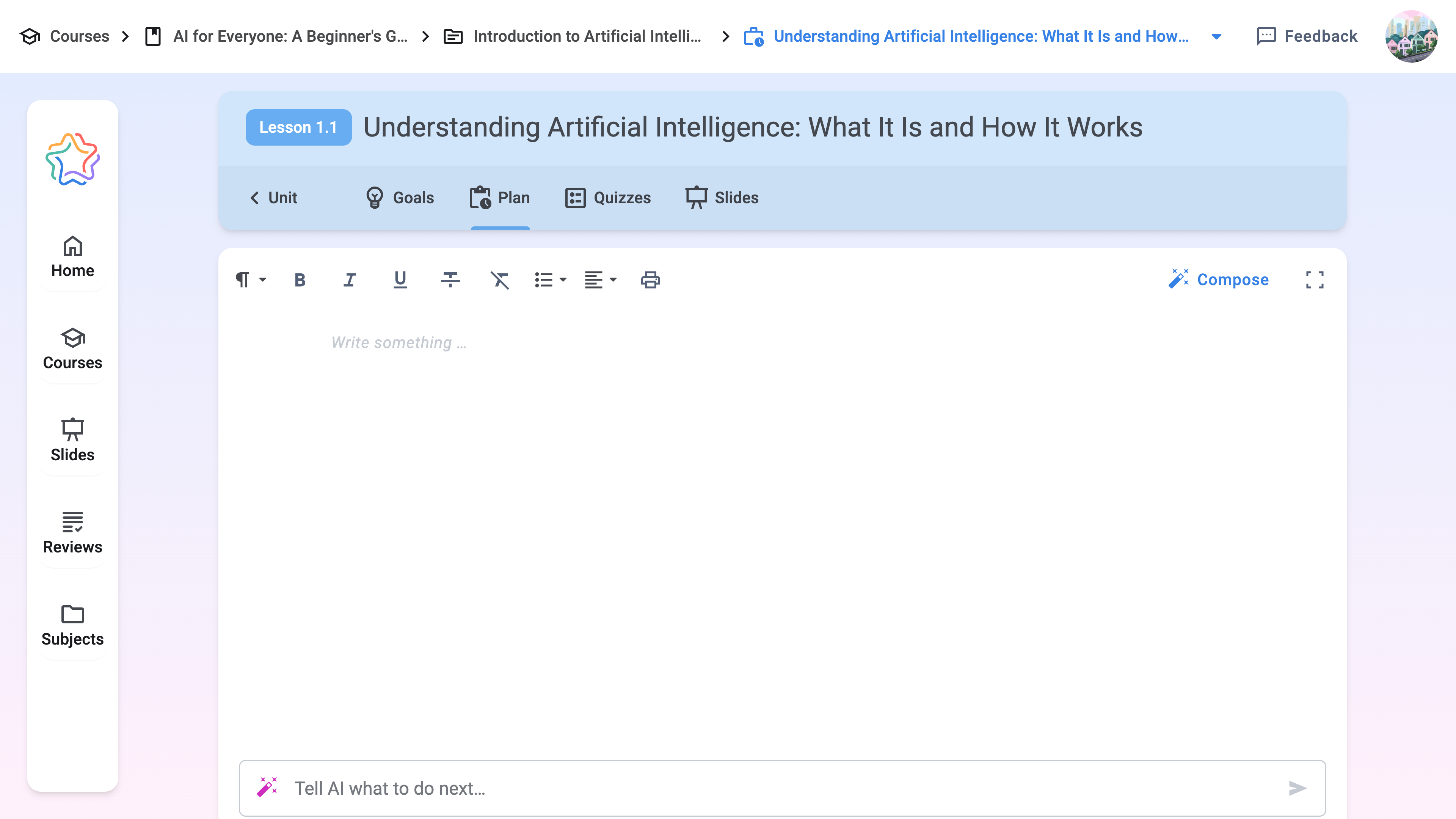
Click the Compose button or the Magic Wand on the AI chat Assistant to open the modal window:
- Indicate whether or not you would like our AI assistant to use the learning expectations when creating the lesson plan and click "Compose"
- You can also generate a lesson plan using our AI chat assistant located at the bottom of the editor. To improve the quality of the results, include the teaching style you prefer, the type of activities you'd like to add, and the level of detail you expect in the plan in your request.
❗ Example: Create a lesson plan in a structured format with clear sections. Introduction, Main Part, Practice, and Conclusion. Write the text in a simple, conversational style so that students can easily follow it. Add two interactive activities, such as a mini-discussion or a short experiment, and end the lesson with control questions for group discussion. Use concise, active wording and avoid heavy academic terminology.
How to Edit Your Lesson Plan
Your lesson plan is ready. What's next:
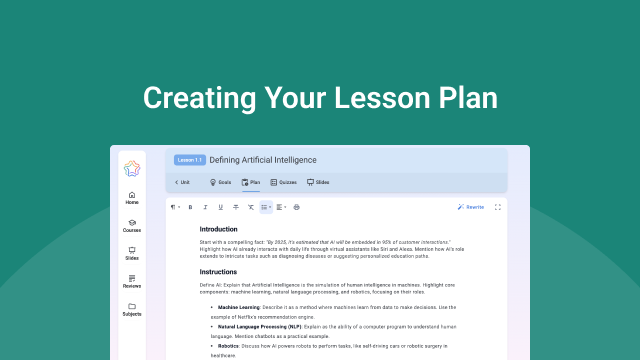
- Edit the Lesson plan using our built-in editor
- Make changes to the style and structure of the Lesson plan
- Use our AI chat to add tasks, questions, or extra activities
- Simplify wording, shorten sections, or suggest new ideas using AI chat
- Click the Magic Wand on the AI chat to take advantage of our shortcuts
❗ Note: We’ve added quick commands that allow you to change the style or tone of the text, as well as shorten or expand it, without typing everything manually in the chat. Generate multiple versions and select your favorite. While working with the chat, you can switch between versions.
Print or Export your Lesson Plan
When your plan is ready, click the Print button to:
- Export as a PDF or Word
- Print it if needed
- Use it as a working document in class or share it with colleagues