How to Quickly Create a Quiz
Creating quizzes is an effective and quick way to prepare assessments for your lessons. You can create quizzes manually or use AI to generate them.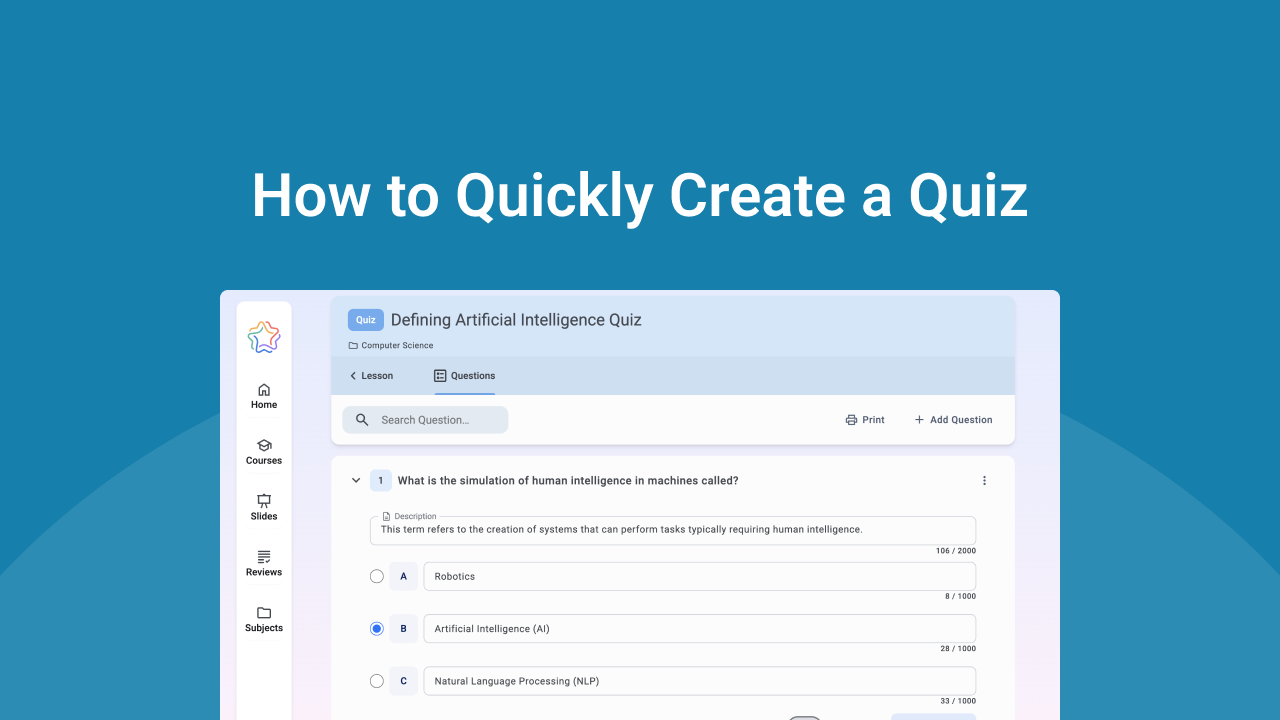
Finding Quizzes in Your Course
Quizzes are available inside lessons. To find them, open a course, navigate to a unit, then select a lesson. In the lesson, go to the Quiz section to view, create, and edit quizzes.
❗ You can find more details about course creation, unit planning, and lesson planning here: How to Create a Course, Working with Units, Creating Your Lesson Plan.
When you open the Quiz page, you have two options:
Create a Quiz with AI
Click the "Compose" button to open the settings for generating the quiz:
- Set your preferred number of questions or allow the AI to choose automatically
- Add any additional materials for the AI to consider
- Choose whether to include Learning Expectations and the Lesson Plan
❗ Note: If you haven't completed the Learning Expectations or Lesson Plan, they won't appear in the quiz generation settings. We recommend going back and completing them first so that your quiz aligns with the lesson.
Editing and Customizing a Quiz:
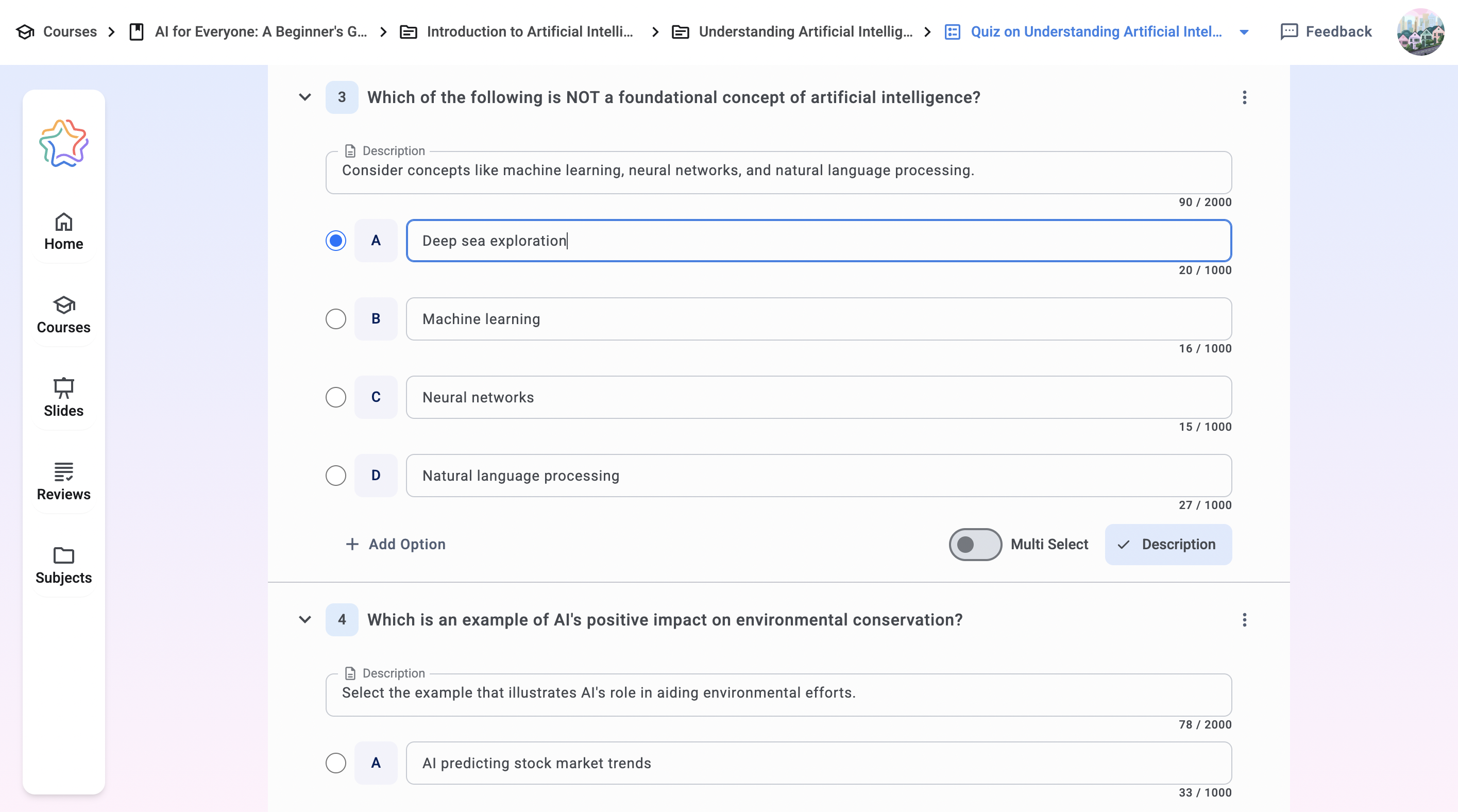
- Make changes to existing questions
- Delete or add new questions
- Reorder the questions as needed
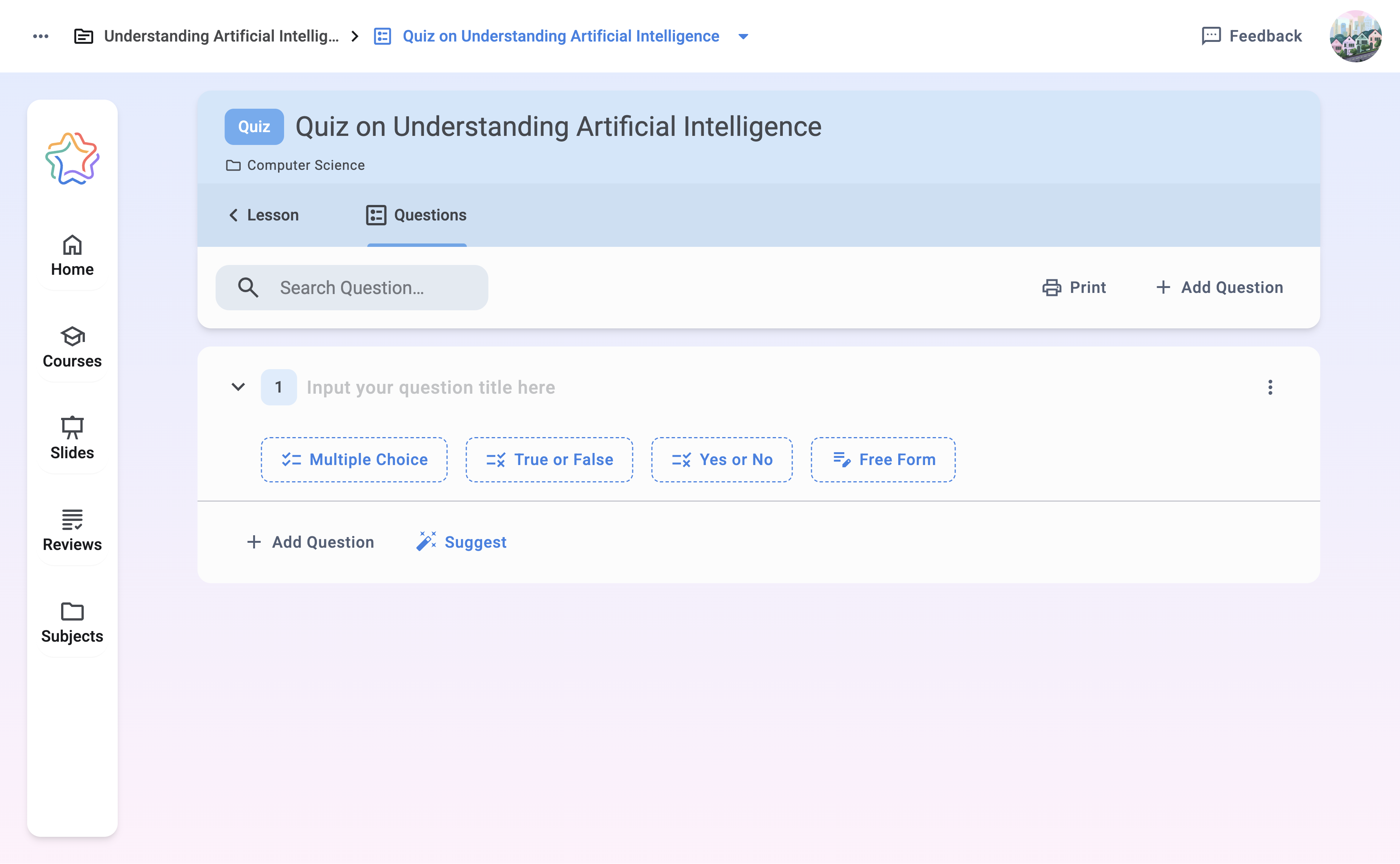
❗ Note: You can add a new question by clicking the Suggest button. Click Suggest and select the type of question you want: single choice, multiple choice, binary choice, free form or click Surprise me to let the AI create something interesting for you.
Export and Print your Quiz
Click the Print button to print or save the quiz as a PDF or Word to share with the student or include it in documentation.
❗ Note: when printing or exporting, you can decide whether to include the correct answers or leave only the questions.